
Last week, one of my lovely clients told me something I hear all the time:
“I adore my iPad… but by the end of the day, my eyes feel like they’ve done a full workout.”
She wasn’t doing anything “wrong”. She was reading emails, checking recipes, and enjoying photos, the exact things an iPad is brilliant for. The problem was simple: the text was just a bit too small for comfortable everyday use or too big to see the messages or emails easily.
The good news? Your iPad and iPhone lets you change text size in seconds but there’s a second even better way through Control Centre that allows you to adjust the text size specifically for each app.
Best of all it available with one swipe from anywhere.
The traditional way: change text size in Settings
This method is reliable and works well if you only change your text size occasionally. These images are from the iPad but can also be done on your iPhone.
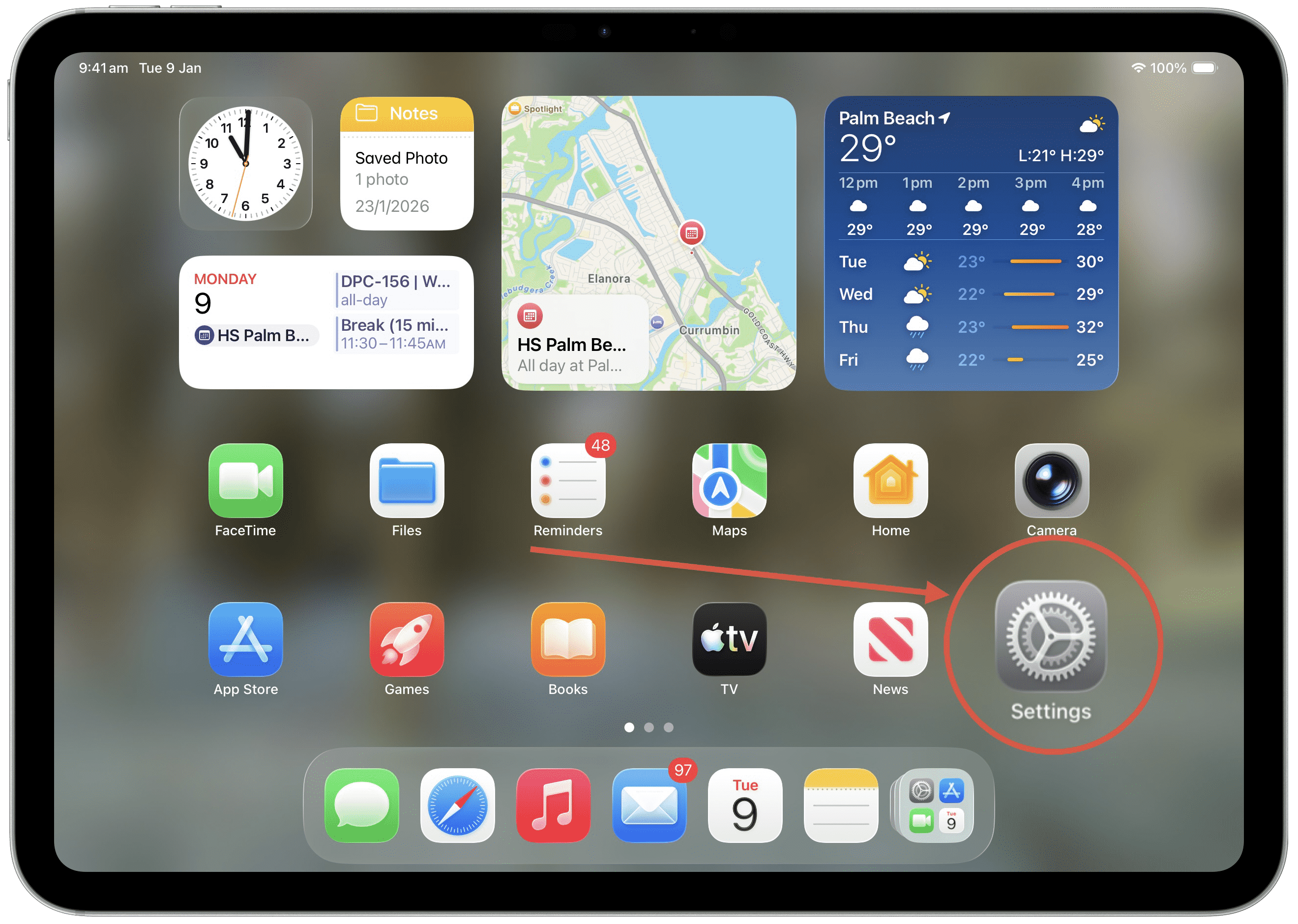
1. Open the Settings app
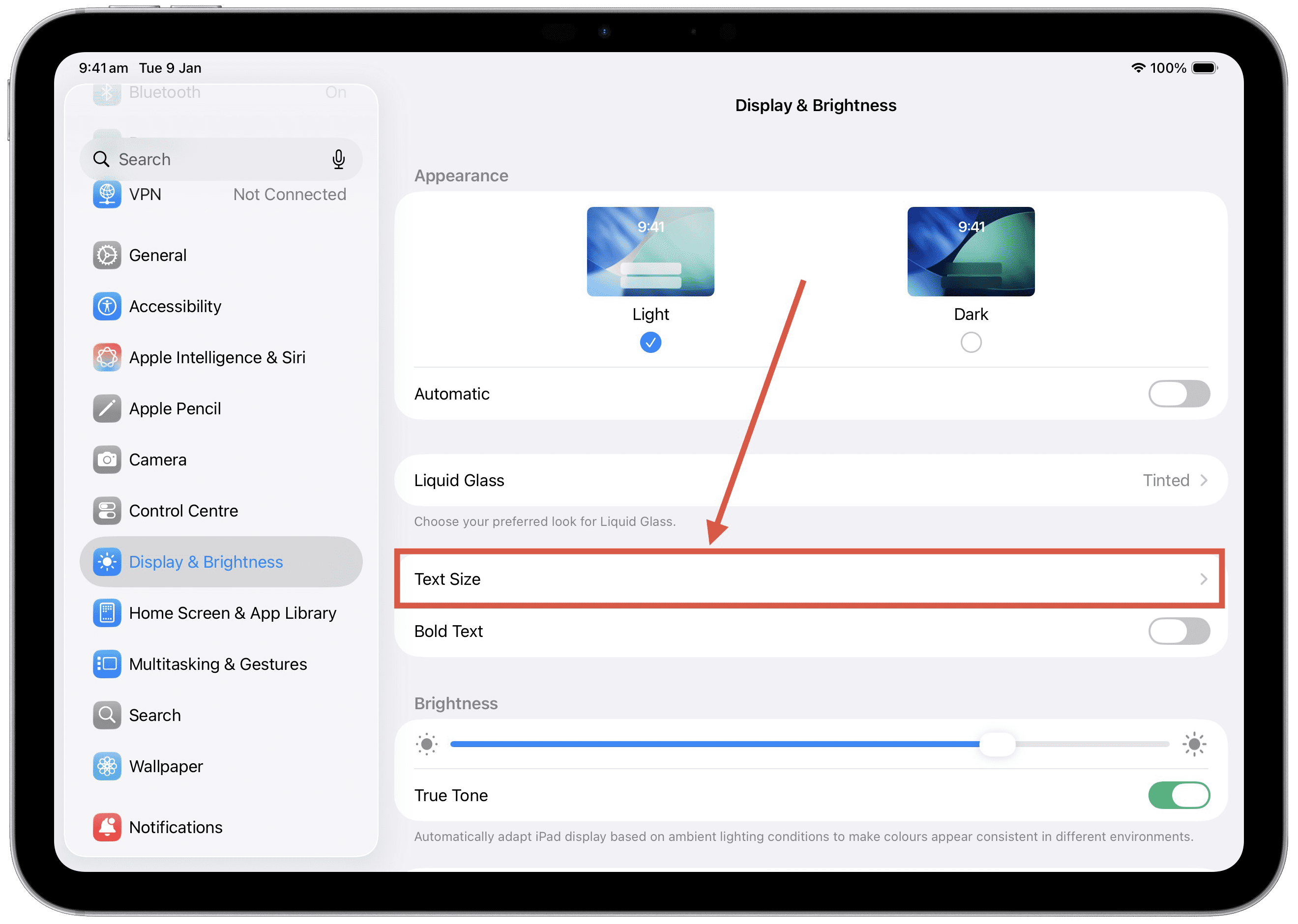
2. Tap Display & Brightness (left column) and then Text Size (right column)
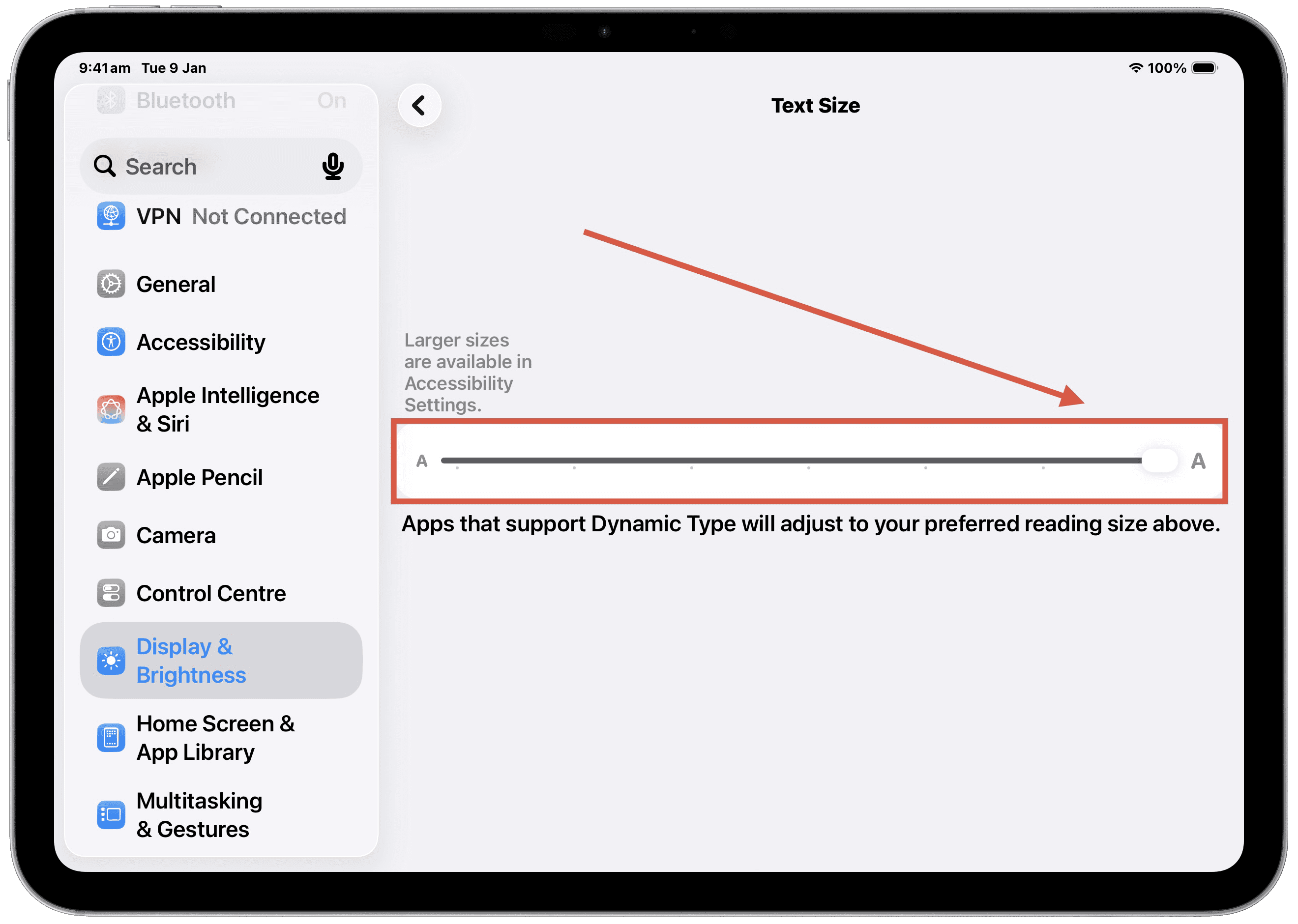
3. Drag the slider left (smaller) or right (larger) until it looks comfortable for you.
4. Optional: go back one screen and turn on Bold Text for extra clarity

That’s one way to do it. You’ll notice menus, emails, and many apps immediately become easier to read. (Some apps manage text size differently so may not always change size, but this helps in a lot of cases across the system.)
Read on though, as I recommended an even better way to adjust Text Size as needed.
The BEST way: add Text Size to Control Centre (one swipe access)
This setup is the easiest and fastest way to get to Text Size on an everyday basis. You can adjust text size from any screen, without having to open up Settings and go hunting for the Text Size menu. (Again this can be done for both the iPad and iPhone.
There are a few steps to the setup but once done it is only one swipe to access the menu and one swipe to adjust Text Size from any screen.
Setup Add Text Size control to Control Centre
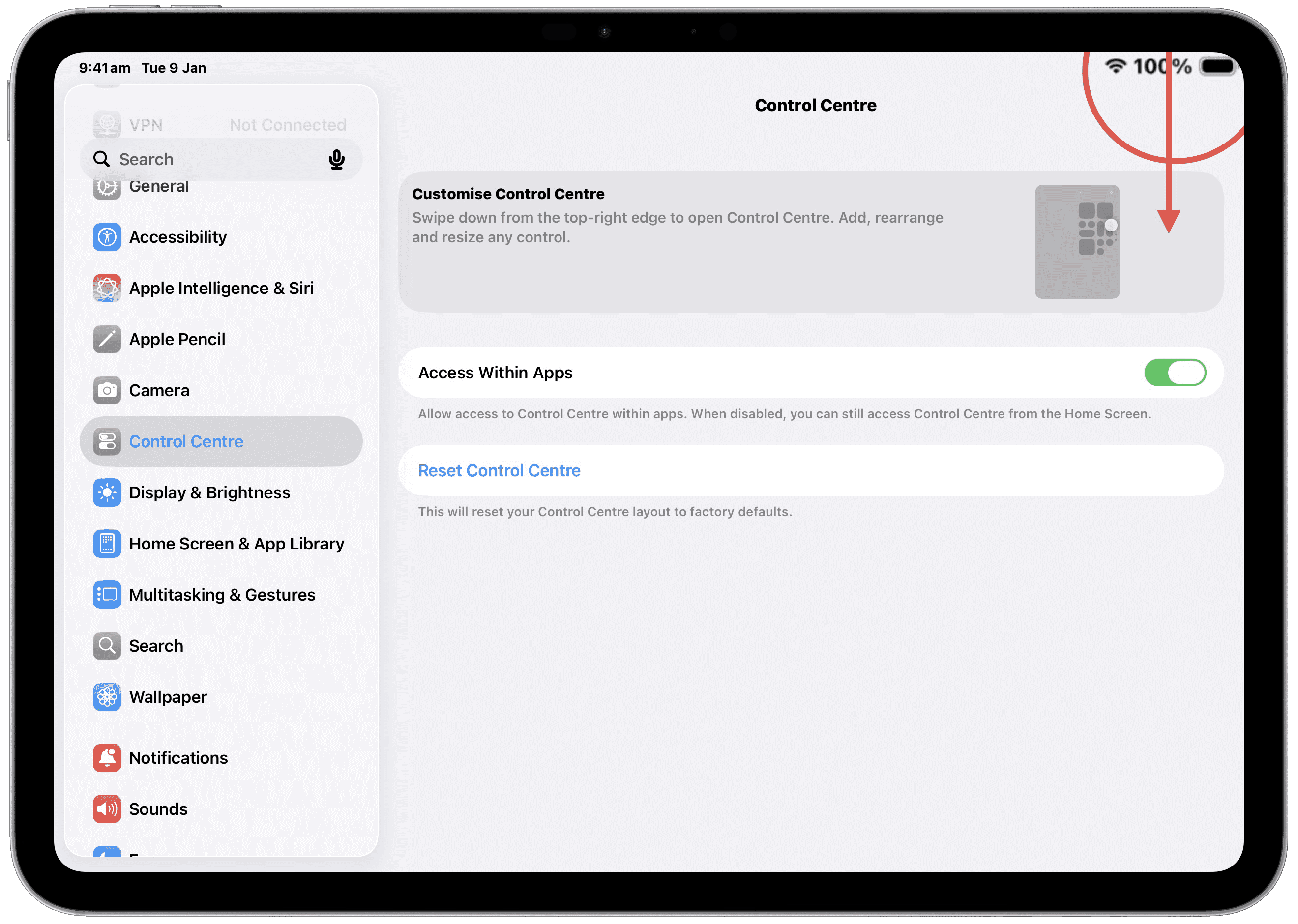
1. Access Control Centre by swiping down from the top right corner of your iPad or iPhone from any screen. You do not need to be in the Settings app. If it doesn't work you may need to open Settings > Control Centre and make sure "Access Within Apps" is turned on.
2. Tap "+" in the top left corner of Control Centre
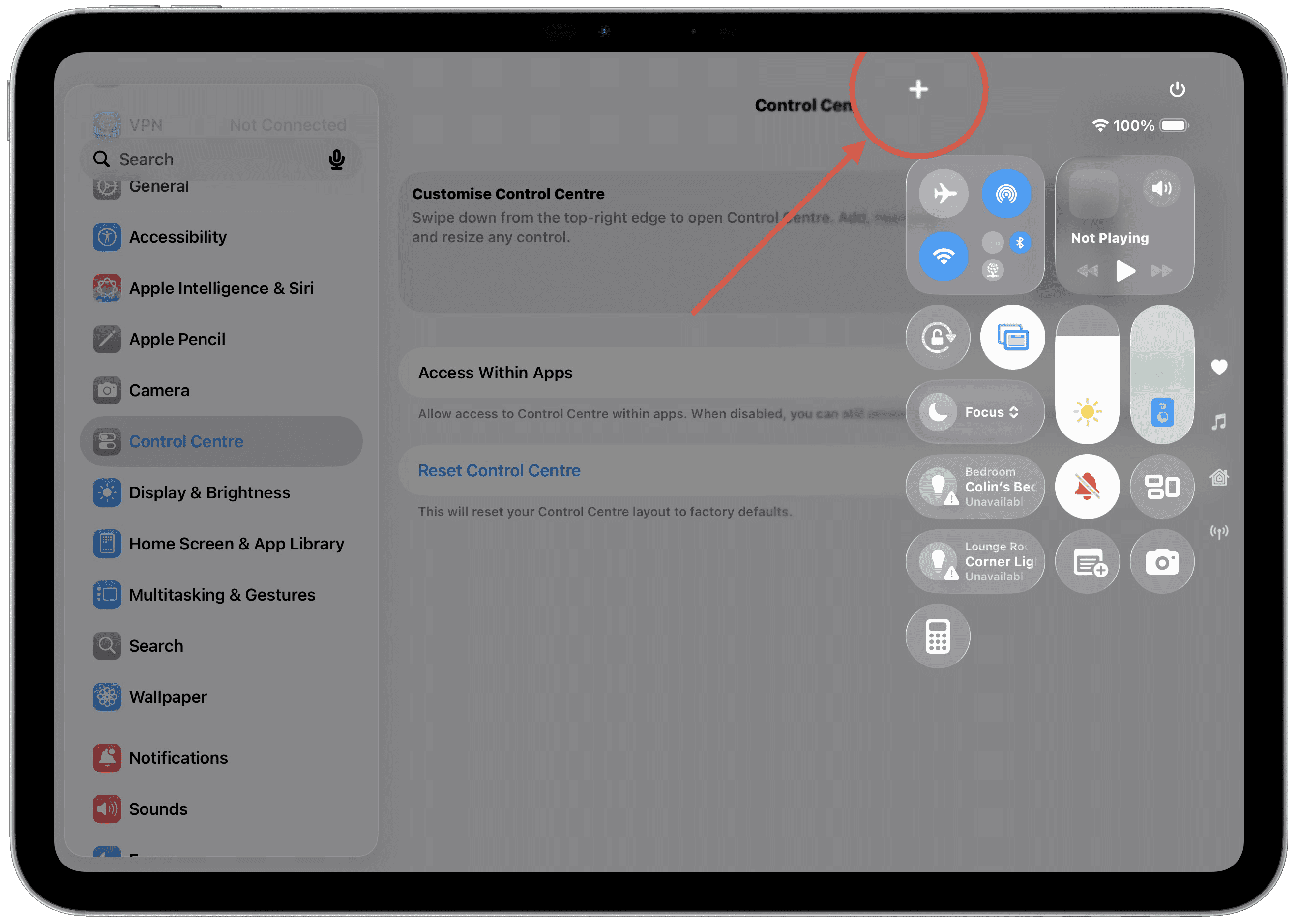
3. Tap "Add a Control"
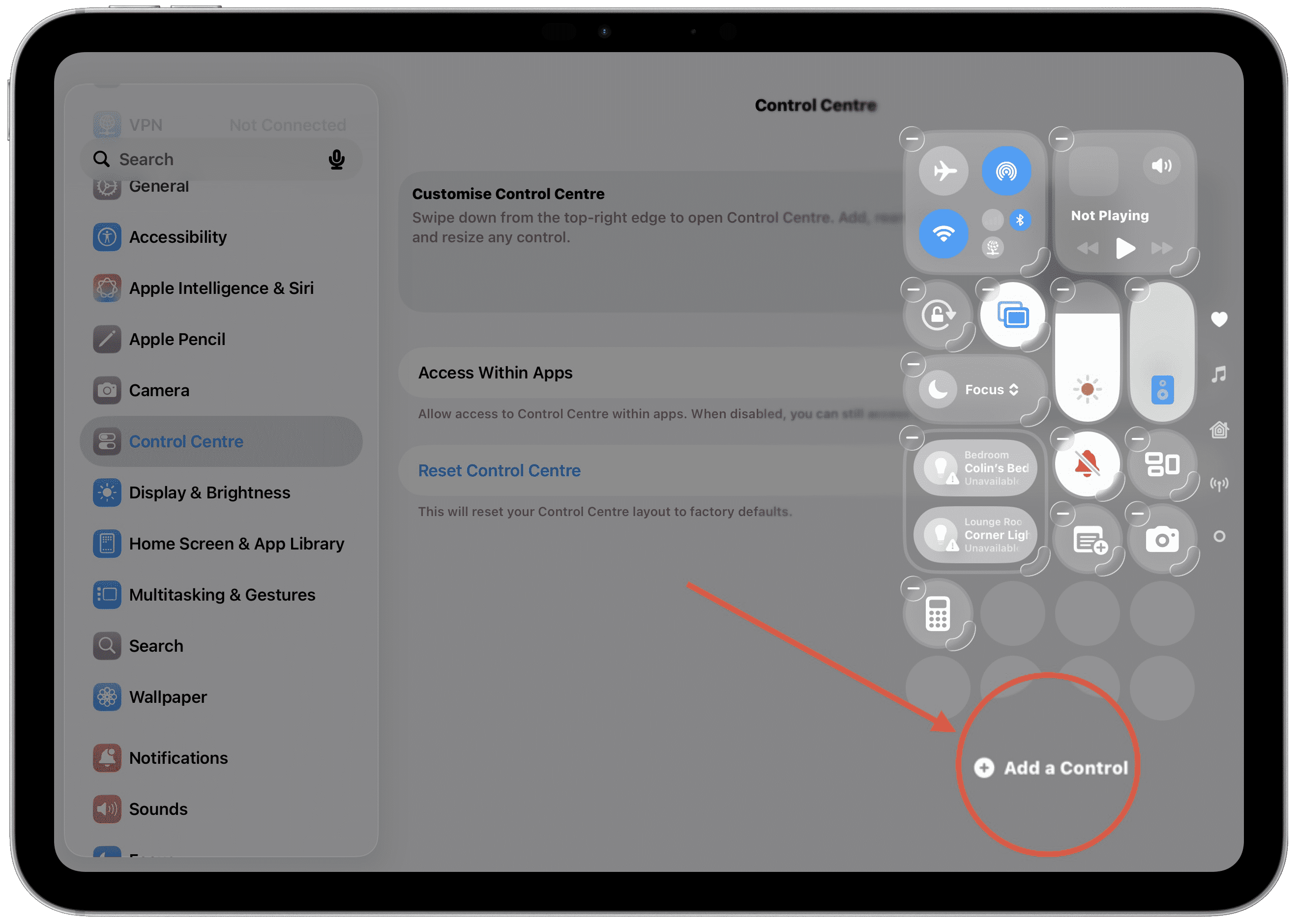
4. Tap the Text Size button and it will move to your Control Centre
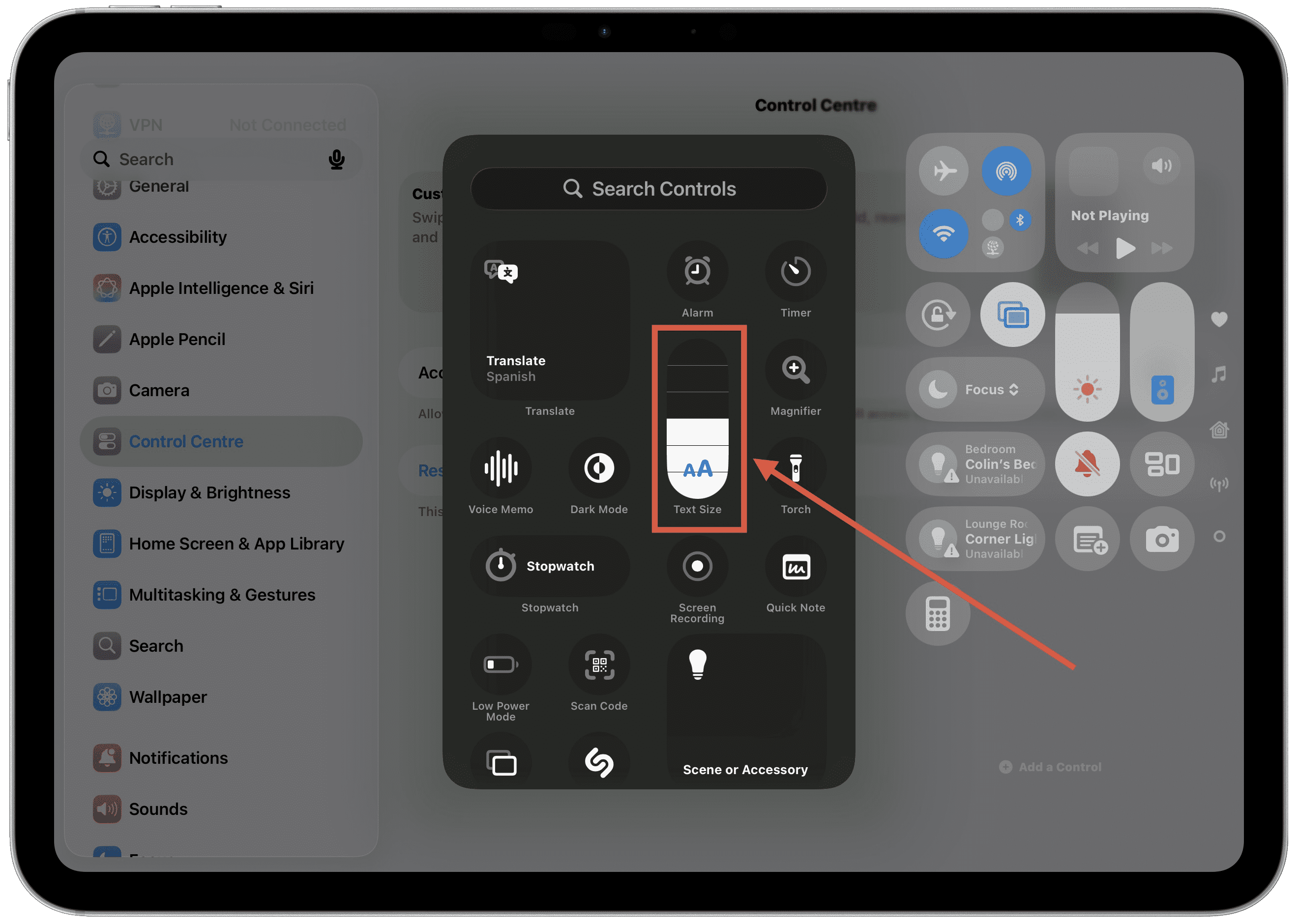
5. Tap anywhere that is not the Control Centre menu.
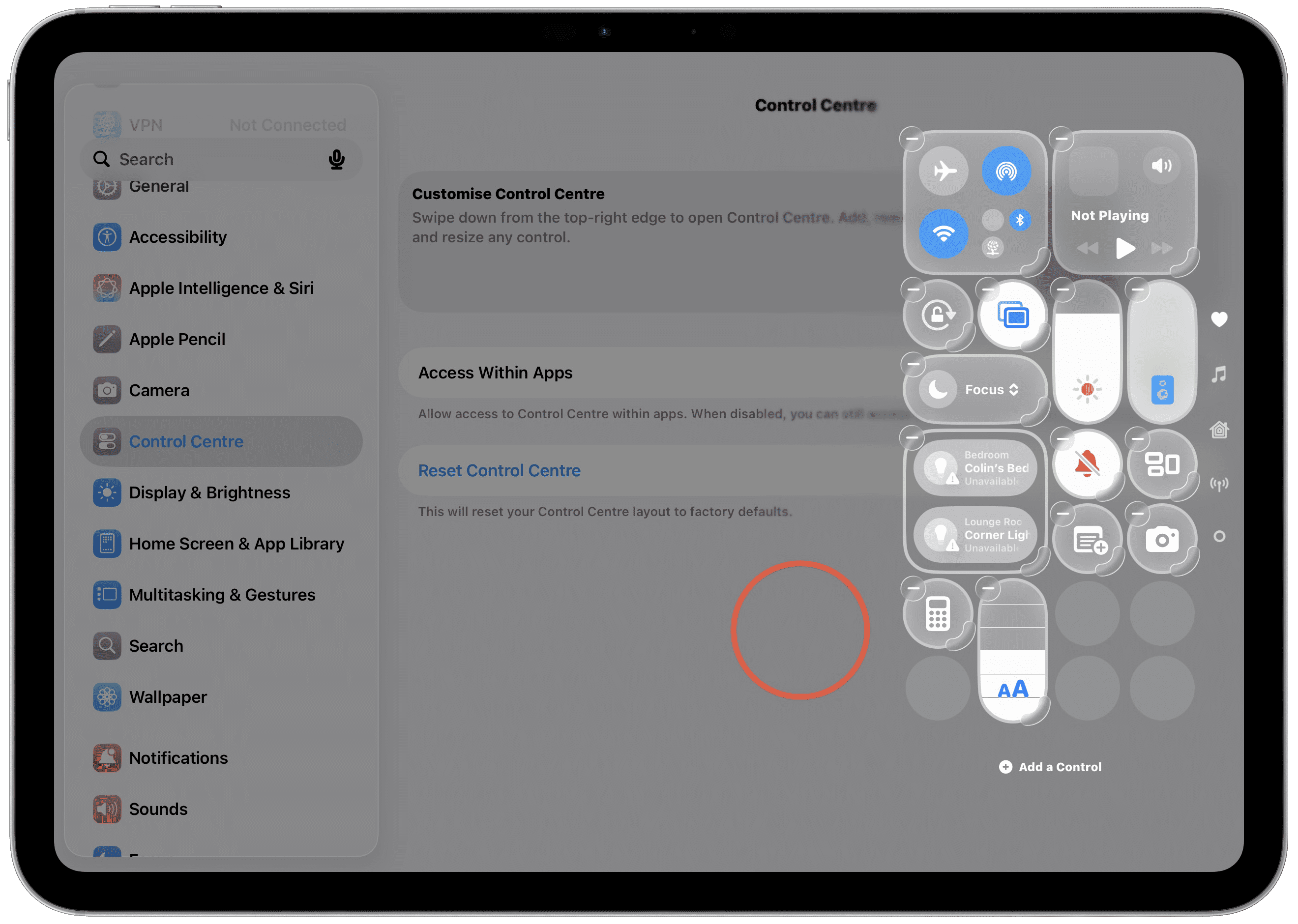
Now you have easy access to Text Size through Control Centre!
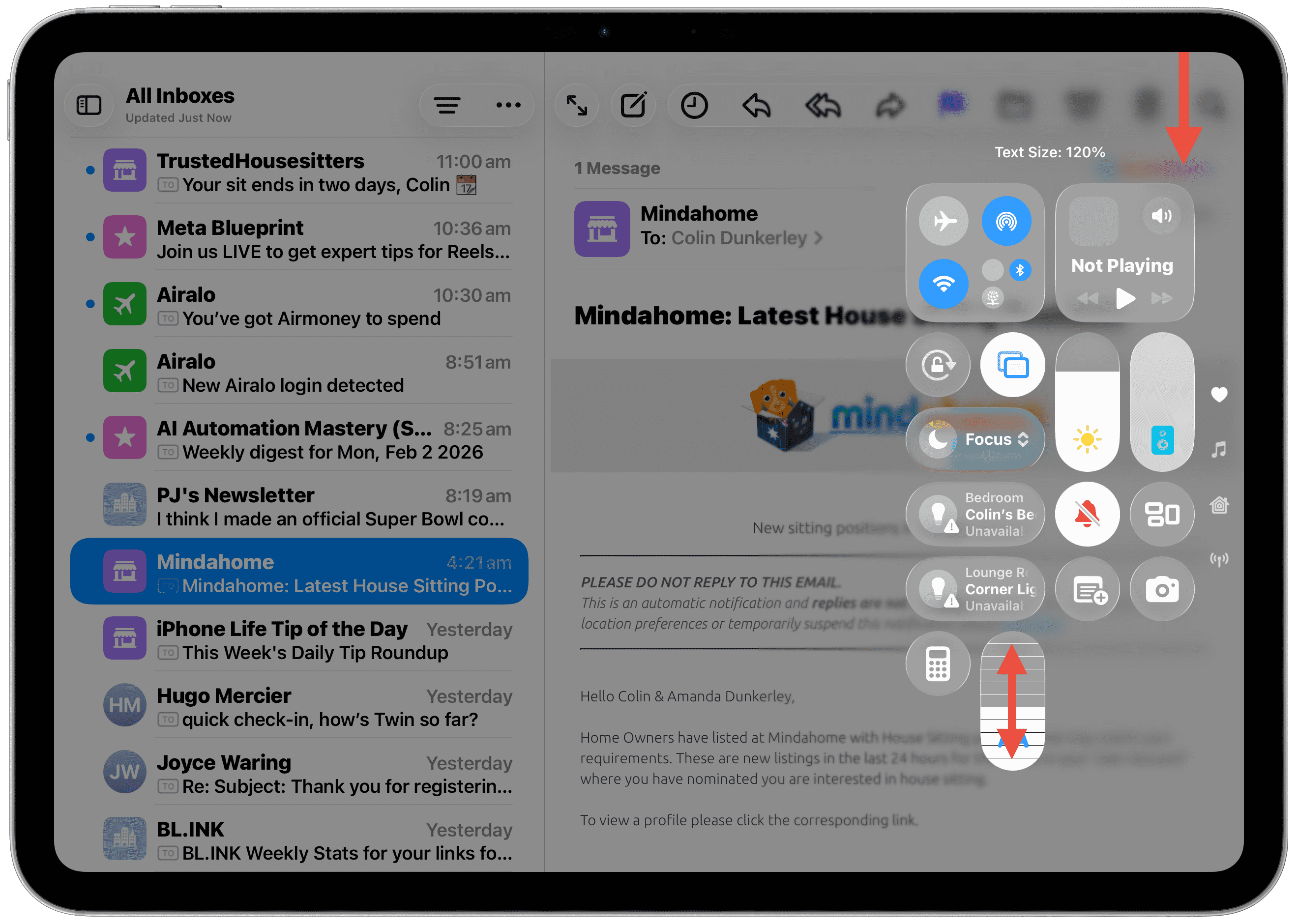
- Swipe down from the Top Right corner of your iPad or iPhone screen.
- Swipe up or down on the Text Size (AA) button. That's it!!
- Tap any blank section of the screen to return to your app
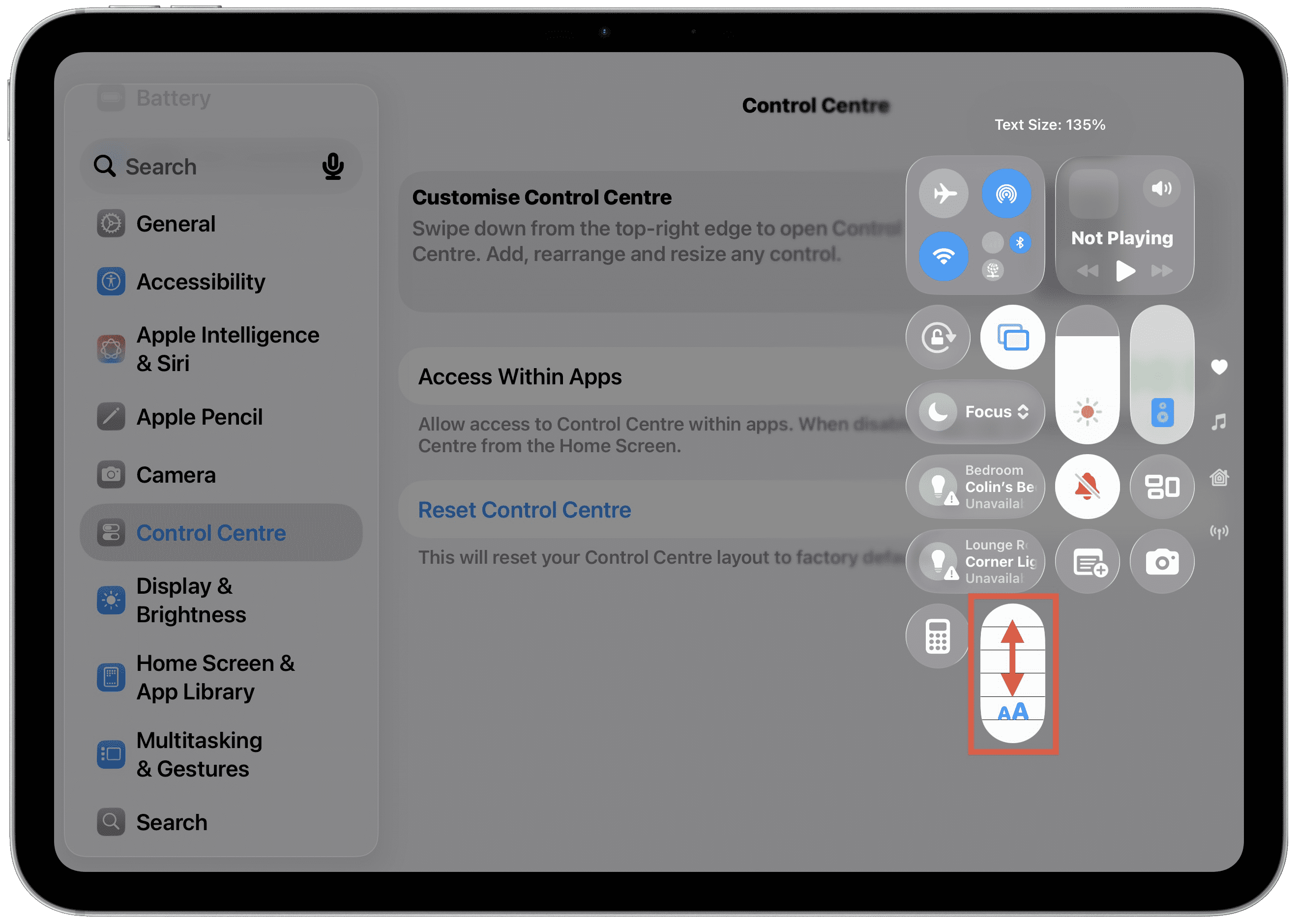
This is by far the easiest way to quickly adjust the text size based on what you are trying to read. It is available from the Home screen or within any app at all times.
Want to create App Specific Text Size (optional)
This allow you to have one Text Size for Mail, another for Messages and different again for Settings or any app you choose.
- Slide you finger down from the Top Right corner of your device.
- Push or hold your finger on the Text Size slider
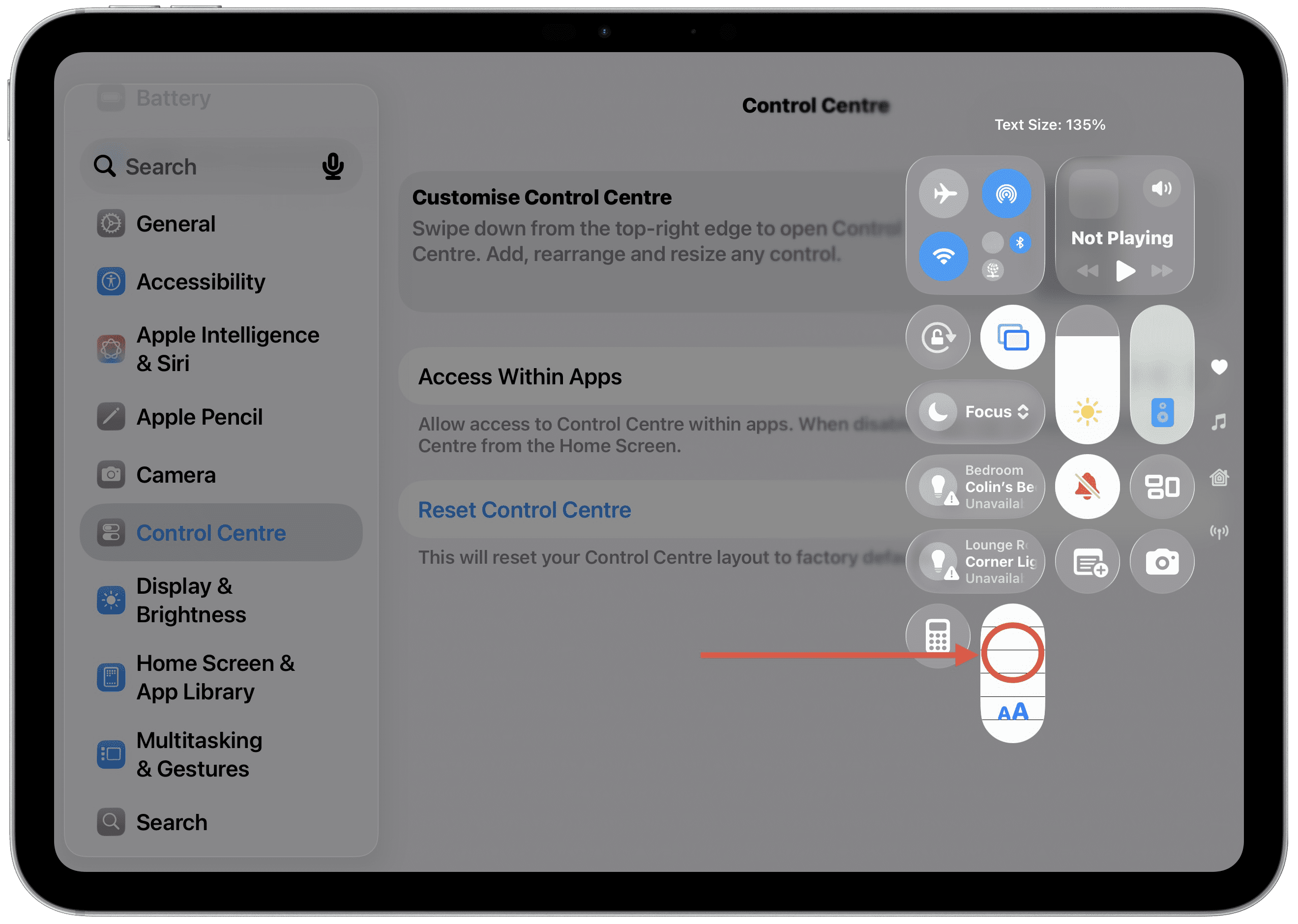
3. Tap the "App Name Only" option, in this example it is Settings Only.
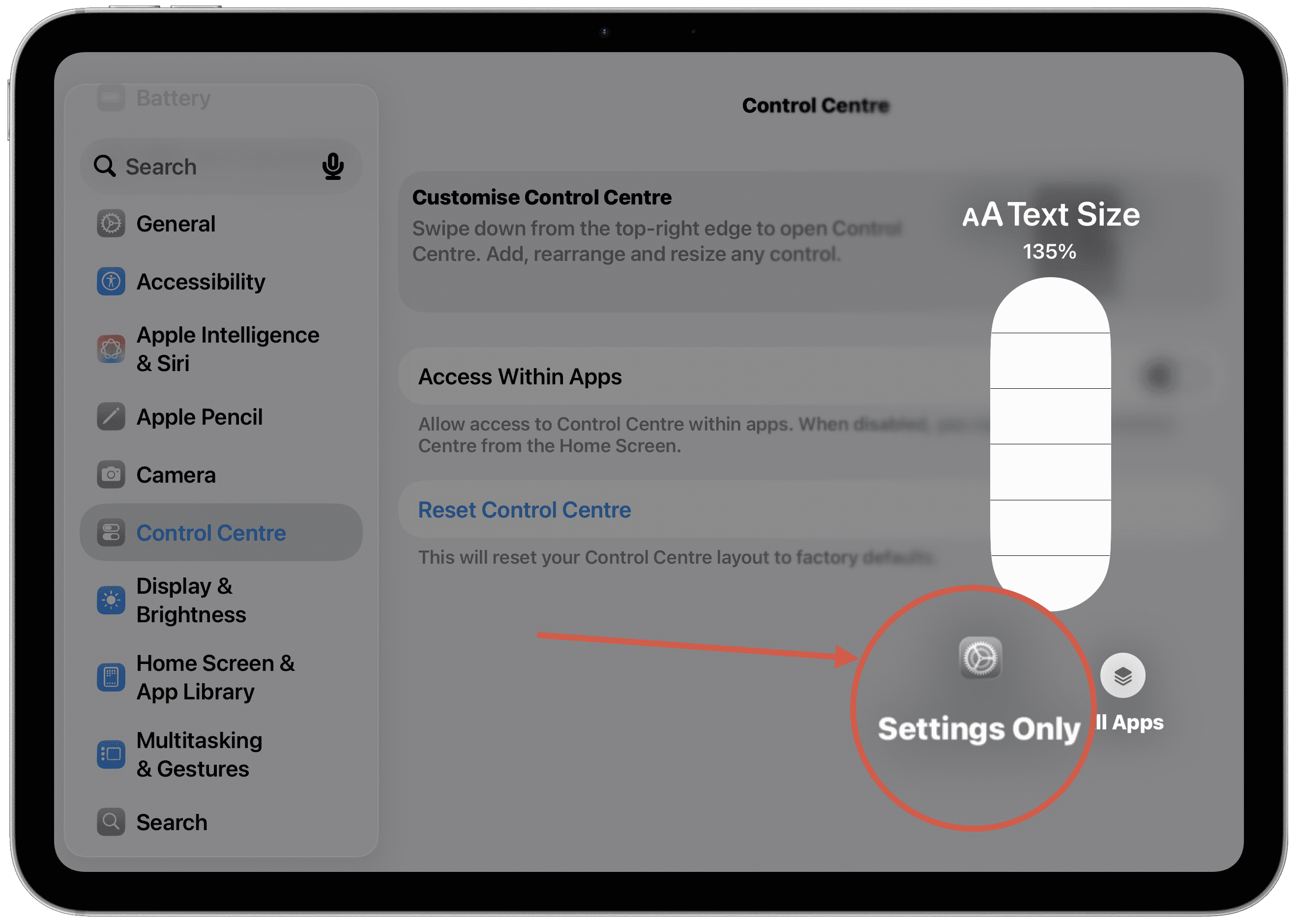
4. Slide your finger up or down to increase or reduce the Text Size for this specific app only. Remember to tap a blank part of the screen to return to your app.
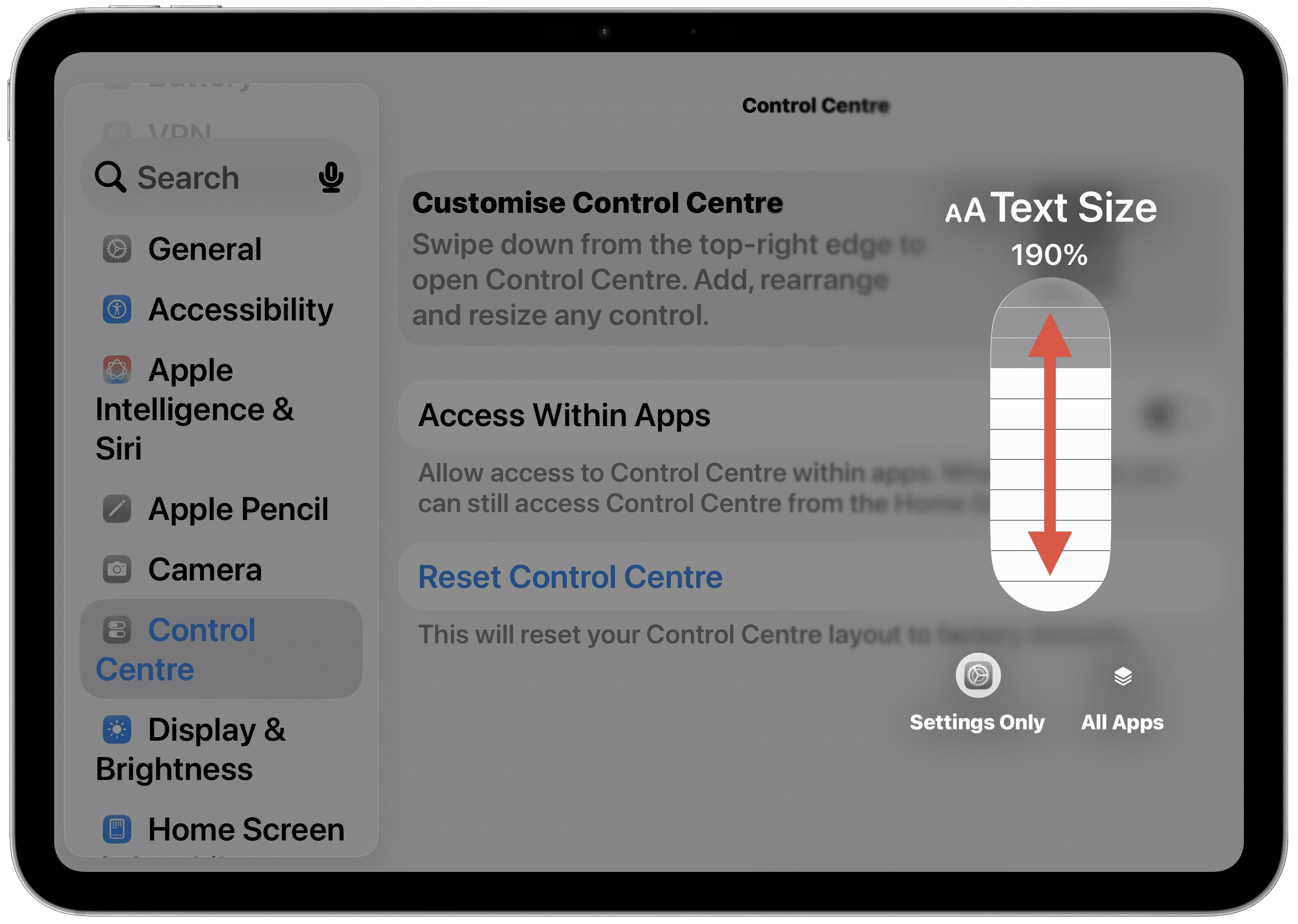
Beware making the Text Size too big!!
Some people do have very poor eyesight and may push this setting to it's boundries only to find some apps become more difficult to use. This may be required based on your eyesight but I highly recommend going just large enough to help your vision but no further.
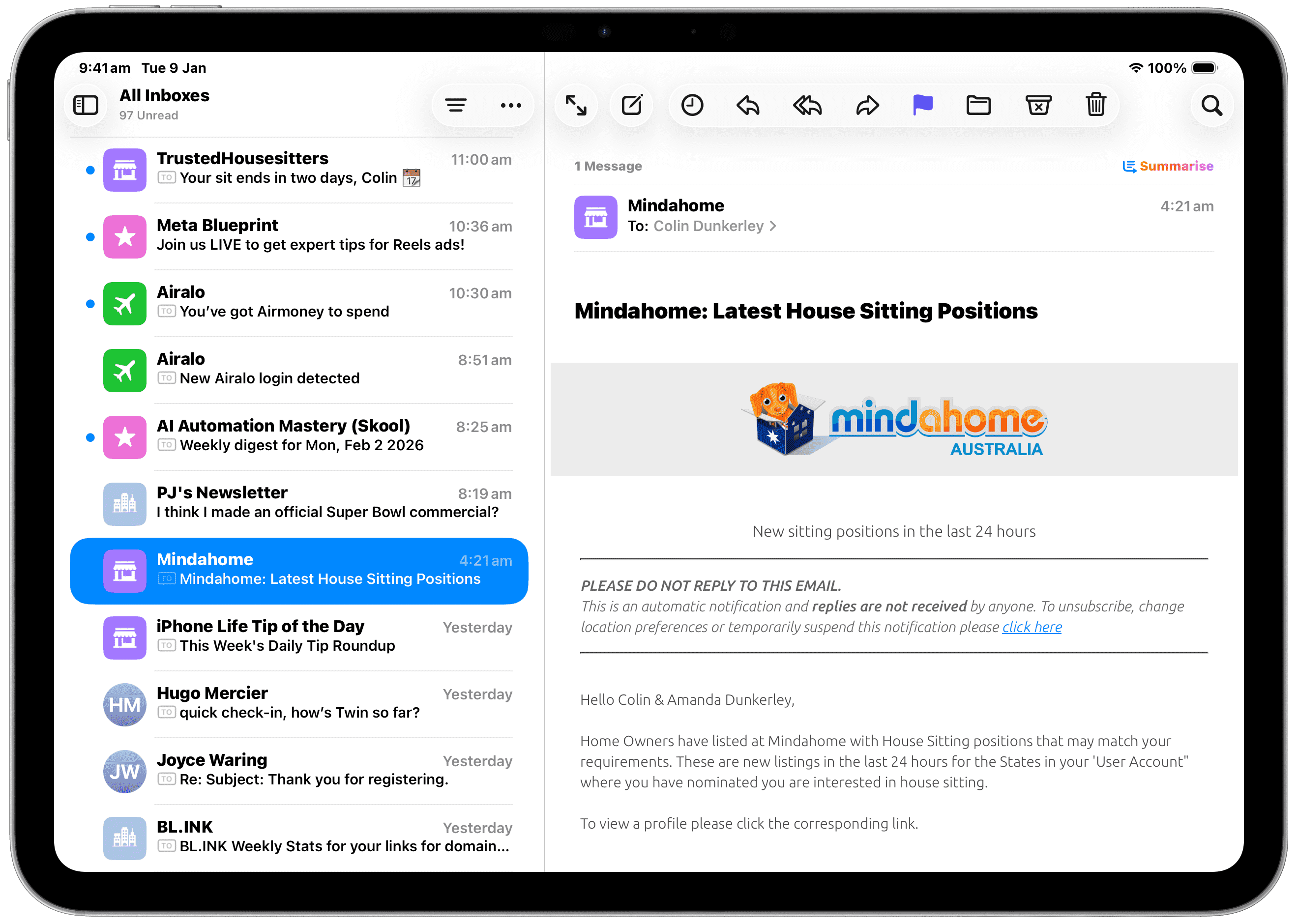
In the 2 examples below I am showing the Mail app with text so large that you lose the scale of what is in an email or can't see lists or menus. You would need to remember to be always scrolling further to make sure you have seen the information in it's entirety.
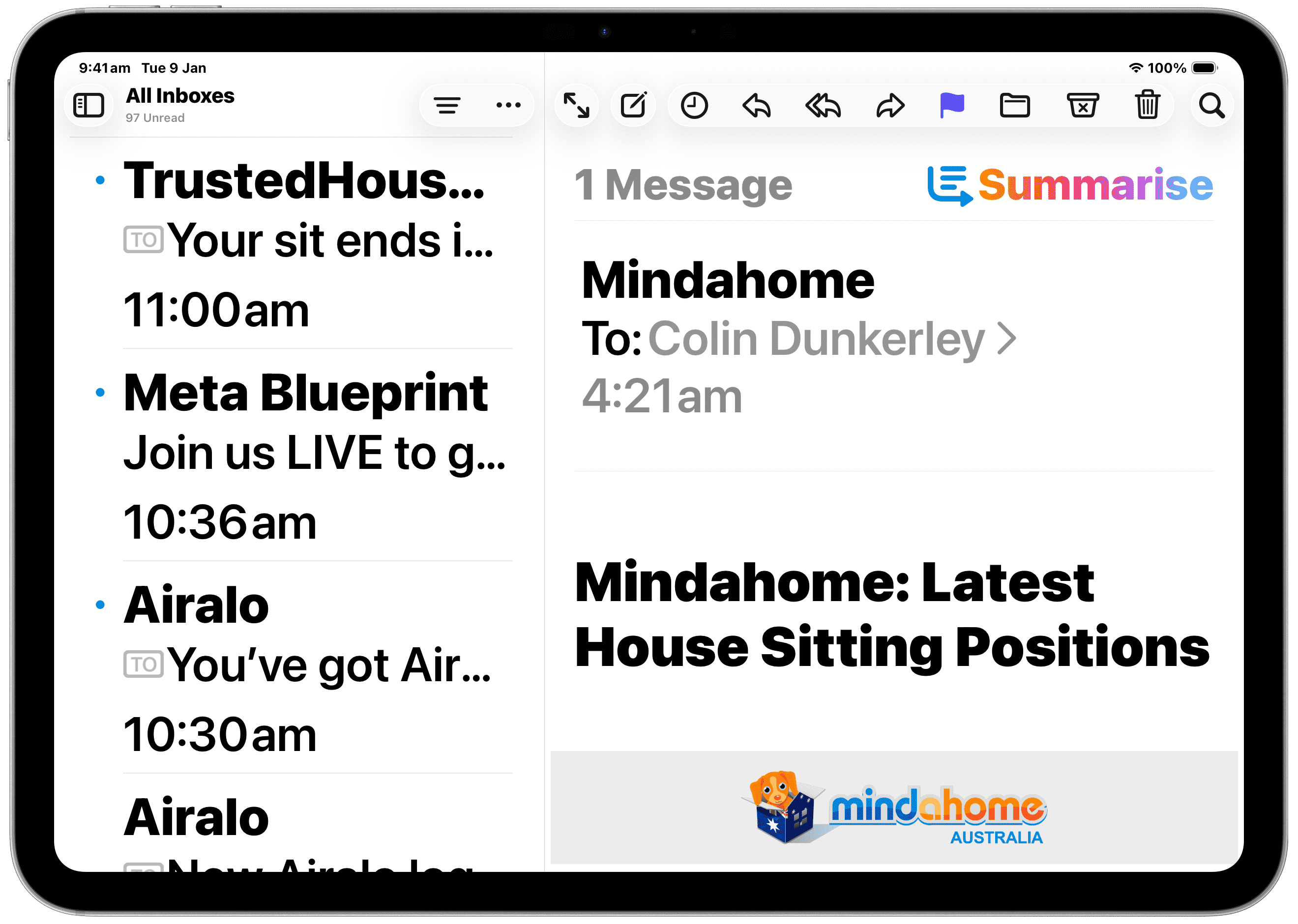
This is the same screen with 310% Text Size and then 80% text Size. You can only see 3 emails in the list and only 5 words with the Mail app set at 310% vs 11 emails in the list and about 100 words in the Mail app set at 80%
Remember once this is set up you can swipe down from the Top Right corner of your device at any time and adjust the Text Size to your needs. There is no right or wrong setting and all apps don't have to be equal!
Let me know what you thought of this tip. If you would like to learn more features like this then why not register for my Back To Basics lesson coming up at 9:30am (GMT+10), Wednesday 18th of February, 2026

Responses